
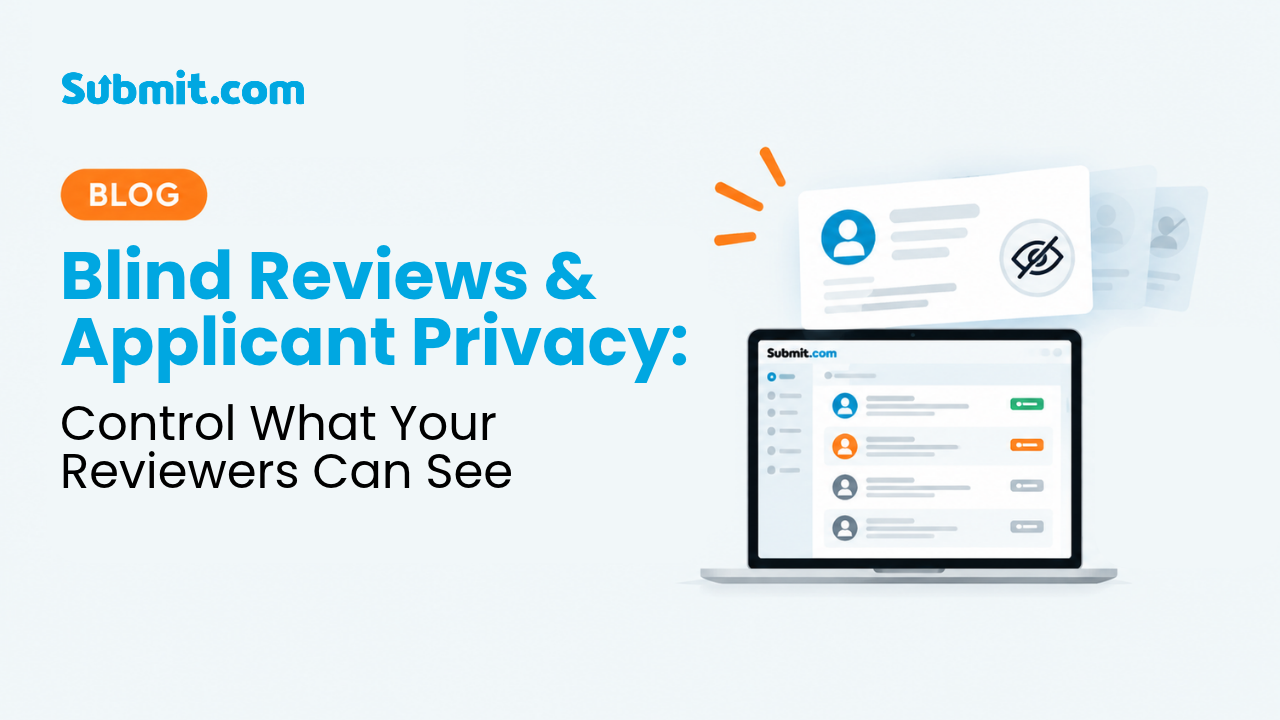
Blind Reviews and Applicant Privacy: Control What Your Reviewers Can See
Did you know that Submit.com gives you a range of tools to protect applicant information and support fair, impartial assessments?
Whether you’re assessing grant applications, reviewing funding proposals or working with an external evaluation panel, you may not want every reviewer to see all the information submitted by an applicant.
Submit.com provides several ways to hide identifying information, control access to application content and manage exactly what your reviewers can see. Here’s a guide to the features available.
Each layer narrows what a reviewer can see. Free-text answers and uploaded documents can still reveal an applicant’s identity, so check them too.
1. Hide applicant names and contact details
One of the simplest ways to support blind review is to conceal identifying details from reviewers.
Within Folder Settings, you can configure how applicant information is displayed. Turning off the applicant details option hides each applicant’s email address and phone number, and turning off the candidate name option reduces each applicant’s full name to an initial for everyone using that folder.
This is particularly useful when you want reviewers to focus on the merits of an application rather than the identity of the applicant.
Learn more about managing folders and their settings
2. Choose which parts of an application reviewers can see
Folder Settings also allow you to control the visibility of entire sections of an application. When configuring a folder, you can choose whether to make the following available to reviewers:
- Application Form: control whether reviewers can view the main application form.
- Office Use Only Form: hide internal assessment information, recommendations or administrative notes recorded by your team.
- Uploaded Attachments: restrict access to supporting documents, which may contain personal details or other sensitive information.
These settings allow you to tailor the information available to different review panels. For example, you might want an external assessor to evaluate an application without seeing internal Office Use Only notes or certain supporting documents.
Learn how to manage folder visibility settings
3. Hide individual questions containing sensitive information
Sometimes you need reviewers to see most of an application, but not every answer.
For example, an application may include an organisation name, contact details, demographic information or other potentially identifying information that is not relevant to the assessment.
Submit.com’s Hide in Folders option allows you to exclude specific questions from the folder review view. By enabling this option in a question’s advanced settings, you can continue collecting the information you need while keeping that particular answer out of the reviewer’s folder view.
This is especially useful for creating partially anonymised assessments without having to create separate versions of your application form.
Learn about advanced question settings
4. Share applications securely with external reviewers
Need to involve independent assessors, evaluation committee members or external experts?
With Submit.com’s External Reviewer functionality, you can invite reviewers to access specific folders rather than giving them general access to your workspace. You can:
- Share only the applications assigned to a particular reviewer or panel.
- Apply folder visibility settings to restrict the information available.
- Control reviewer access using folder permissions.
- Allow reviewers to score applications and provide evaluation comments.
By combining external reviewer access with the privacy options described above, you can build a structured and more confidential assessment process.
Learn how to set up external reviewers
5. Combine blind review with structured scoring
Blind review doesn’t mean sacrificing the quality or consistency of your evaluation process.
Submit.com’s Score-Bars allow reviewers to assess applications against predefined criteria. By combining Score-Bars with the folder visibility settings and question-hiding options, you can give reviewers the information they need to make an informed assessment while reducing exposure to identifying details.
Learn how external reviewers can score applications
Check your set-up before reviewers log in
Before inviting your assessment panel, it’s worth checking your folder configuration from an external reviewer’s perspective. Make sure that:
- Applicant contact details are hidden where appropriate.
- Sensitive questions have been excluded from the folder view.
- Application forms, Office Use Only forms and attachments have the correct visibility settings.
- Internal comments and tags are set to team-only visibility, because the “Everyone” setting includes external reviewers.
- Each reviewer’s folder permissions, including whether they can download applications, match what they need.
- Reviewers can access only the applications intended for them.
Remember: blind review settings help reduce the visibility of identifying information, but free-text answers and uploaded documents may still reveal an applicant’s identity. Always consider this when designing your assessment process.
Not on Submit.com yet? See folders, visibility settings and Score-Bars set up for a blind review panel like yours.
Already a Submit.com customer? Our Support Team can help you configure folders, permissions and scoring tools for your next assessment round. Email support@submit.com or browse the step-by-step guides in the Submit.com Help Centre.






0 Comments